
Jamf Connect & Okta Health Monitoring
Password Sync Health
Company: Digital Convegence
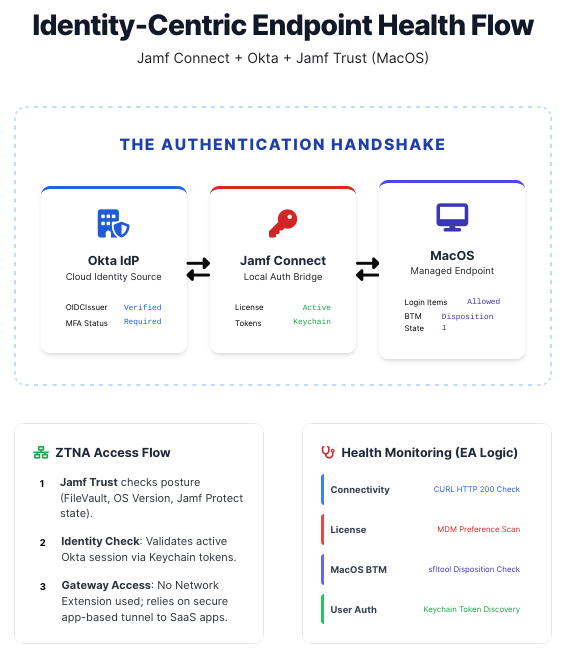
Keeping Jamf Connect + Okta rock-solid across your macOS fleet shouldn’t require guesswork or frantic troubleshooting tickets.
This lightweight monitoring suite (Extension Attribute + Maintenance Script) gives you instant, dependency-aware visibility into the entire authentication chain — from ZTNA tunnel spin-up to Keychain token validation — so you can catch and fix issues before users even notice.
1. Overview
This suite of tools (Maintenance Script & Jamf Pro Extension Attribute) provides robust validation of the Jamf Connect and Okta integration. It is specifically optimized for macOS Tahoe (15) and Sonoma (14), addressing Service Management (BTM), ZTNA Tunnel initialization, and Keychain-based session validation.
2. Methodology & Logic
The tools follow a “Dependency Chain” logic. The script checks requirements in order of operations; if a foundational requirement (like a network tunnel) is missing, the script stops and reports that specific failure rather than guessing at secondary issues.
A. Identity & Connectivity (ZTNA Aware)
- Key:
OIDCIssuer - Logic: Reads the managed preference from
com.jamf.connect.login. - The “Tunnel Gate”: To prevent false positives during reboot, the script monitors for the presence of a
utun(Userspace Tunnel) interface. It will wait up to 30 seconds for Jamf Trust to initialize its secure pipe before attempting to reach Okta. - Validation: Performs a
curlto the.well-known/openid-configurationendpoint to ensure the path to the Identity Provider is clear.
B. System Integrity (Tahoe Background Tasks)
- Tool:
sfltool dumpbtm - Nuance: In macOS 14/15, users can disable background agents in System Settings.
- Detection: The script parses the “Disposition” of the Jamf Connect daemon. If the status is
disabled,2, or3, background password synchronization is effectively dead.
C. License Verification
- Logic: Performs a deep scan of
com.jamf.connectandcom.jamf.connect.loginforLicenseFileorLicensekeys. - Fallback: If no MDM-delivered license is found, it checks the local cache at
/Library/Application Support/com.jamf.connect/license.plist.
D. Authentication & Sync State
- Process Check: Verifies that the Jamf Connect app is actually running in the user session.
- Password Sync: Checks the
PasswordCurrentkey in the user’s state file. - Keychain Truth: Performs a direct query of the user’s
login.keychain-dbfor the “Jamf Connect” OIDC token. This is the most reliable way to verify a successful Okta handshake has occurred.
3. Reporting: Status Glossary
The Extension Attribute will return exactly one of the following statuses, prioritized by the order of the dependency chain:
OIDCIssuer plist key is missing. The device isn’t scoped correctly.4. Troubleshooting Guide for Admins
jamfconnect://sync.5. Deployment Recommendation
To resolve these issues automatically, create a Self Service / Auto Run “Fix-It” Policy scoped to any device where the Health Status is not Healthy. This policy should:
- Run a script to
sfltool resetbtm(to fix background tasks). - Open the URL
jamfconnect://signin(to trigger the Okta handshake). - Run
jamf reconto update the status in your dashboard immediately.
Built for Jamf and Okta • Optimized for macOS 14 & 15 • Dependency-Chain Logic
You should also read:
Automated Print Cost Recovery & Client Billing Integration
Print-to-Profit Solution
Company: Gold Business Technologies Ltd.
In professional services environments (particularly legal and consulting firms), printing, copying, and scanning costs represent a significant expense. Recovering these costs from clients—by accurately allocating usage to specific matters, clients, or departments—was historically manual, inconsistent, and prone to under-billing or disputes.
Continue reading...
Moneris Payment Gateway Integration for Online Invoice Payment
Drupal-Based Solution
Company: Gold Business Technologies Ltd.
Customers increasingly requested secure, non-PayPal options for paying invoices online. To meet this demand, the company selected Moneris as the payment processor. However, integrating Moneris into the existing infrastructure presented significant technical challenges due to an outdated website and legacy systems.
Continue reading...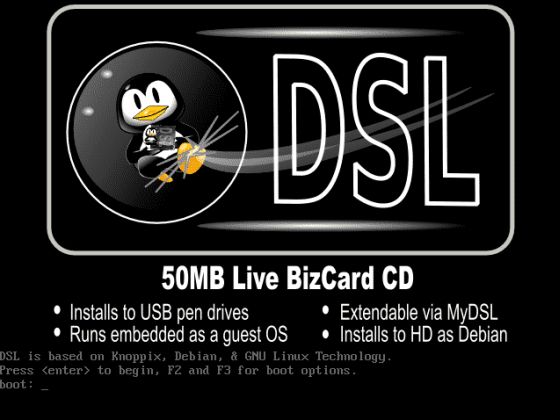
Lottery Terminal Field Update & Rescue Toolkit
Custom Live Linux Distribution
Company: NCR Canada Ltd.
In the era before widespread high-speed internet, updating lottery terminal firmware or gaming software was extremely inefficient. Terminals used slow 1200 baud modem connections (often taking days for transfers), and the alternative—shipping specialized USB jump drives with EXT filesystem images—was costly, logistically complex, and incompatible with standard Windows systems.
Continue reading...