
Jamf Connect Password Sync
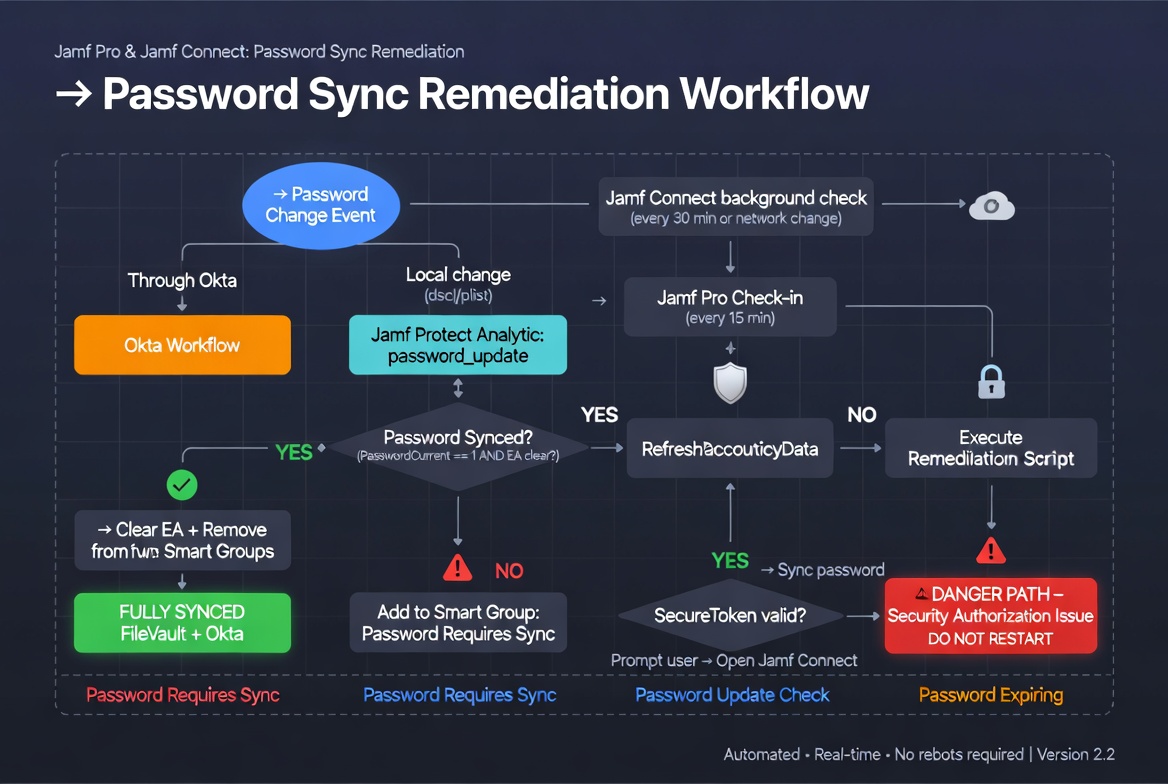
🔐 Jamf Pro & Jamf Connect: Password Sync Remediation
Company: Digital Convegence
Version: 2.2 (Dec 2025) | Lead Engineer: Trevor Leadley
Platforms: macOS 10.13+ | Jamf Pro | Jamf Protect | Okta/IDP
Password desyncs between your macOS local accounts and Okta shouldn’t turn into help-desk fires.
This automated Jamf Pro + Jamf Connect + Jamf Protect solution catches changes instantly, remediates them silently, and keeps everything in perfect sync — no reboots, no manual resets, no frustrated users.
1. Executive Summary & Purpose
This solution automates the remediation of “Password Out-of-Sync” states between the local macOS account password (FileVault / Computer User) and the Identity Provider (Okta) network password.
It specifically targets scenarios where the password has changed or been updated outside the regular Jamf Connect process, the SecureToken has expired/corrupted, or the system never completed a proper shutdown/hibernation cycle.
Triggers:
- Okta/IDP Password Change – detected via Jamf Connect or Okta Workflows (real-time EA update).
- Unauthorized Local Change – detected by Jamf Protect custom analytic monitoring the local directory service.
2. Process Overview
The solution uses four coordinated components:
- Jamf Connect – checks network status every 30 minutes (or on state change) and updates
PasswordCurrentstatus. - Jamf Pro Check-in – runs local status checks and updates Extension Attributes every 15 minutes.
- Jamf Protect Analytics – detects changes to the user profile plist that stores password hash, SecureToken hash, and
passwordLastSetTime. - Okta Workflows – updates the “Password Update” EA in real time when a user changes their password through Okta (not via Jamf Connect).
Users have until the next check-in to sync manually unless the analytic triggers immediate remediation.
3. Jamf Pro Configuration
Script Parameter Mapping
company.jamfcloud.com)API Roles & Permissions
The service account in P5 requires:
- Computers: Read, Update
- Computer Extension Attributes: Read
4. Jamf Protect Custom Analytic
Analytic Name: password_update
Predicate (Plaintext):
($event.path BEGINSWITH[cd] "/var/db/dslocal/nodes/Default/users"
  AND $event.path CONTAINS[cd] ".plist"
  AND $event.isModified == 1
  AND $event.file.contentsAsDict.accountPolicyData.asPlistDict.passwordLastSetTime != $event.file.snapshotData.asPlistDict.accountPolicyData.asPlistDict.passwordLastSetTime)
5. Extension Attribute Scripts
Jamf Connect Sync (EA – checks sync status at check-in)
#!/bin/bash

loggedInUser=$(scutil << "show State:/Users/ConsoleUser" | awk '/Name :/ && !/loginwindow/ { print $3 }')
isCurrent=$(defaults read /Users/"$loggedInUser"/Library/Preferences/com.jamf.connect.state PasswordCurrent 2>/dev/null)

if [ "$isCurrent" != "1" ]; then
  if [ "$isCurrent" == 1 ]; then
    echo "<result>Password Synced</result>"
  elif [ "$isCurrent" == 0 ]; then
    echo "<result>Password Not Synced</result>"
  fi
else
  alias=$(dscl . -read /Users/"$loggedInUser" | grep "RecordName" | awk '{print $2}')
  isCurrent=$(defaults read /Users/"$alias"/Library/Preferences/com.jamf.connect.state PasswordCurrent 2>/dev/null)
  if [ "$isCurrent" == 1 ]; then
    echo "<result>Password Synced</result>"
  elif [ "$isCurrent" == 0 ]; then
    echo "<result>Password Not Synced</result>"
  fi
fi
exit 0;
Jamf Connect Password – Expiration in days
#!/bin/sh
# Jamf EA: Jamf Connect Password - Expiration in days (integer)

currentUser=$(ls -1 /dev/console | awk '{print $3}')
defaults read /var/db/dslocal/nodes/Default/users/$currentUser.plist > /dev/null 2>&1

if [ -z "$currentUser" ]; then
  echo "Error: CURRENT_USER is not set." >&2
  exit 1
fi

# (full expiry logic continues here – see original PDF for complete implementation)
6. Computer Smart Groups
- Password Requires Sync – immediate attention & remediation (executes update prompt if expired).
- Password Update Check – passive sync verification.
- Password Expiring – users whose passwords expire within 5 days.
7. The Remediation Script (Core)
#!/bin/bash

# --- PRE-FLIGHT ---
loggedInUser=$( ls -l /dev/console | awk '{print $3}' )
jamfserver="$4"
jamfProUser="$5"
jamfProPassEnc="$6"

# Decrypt password
jamfProPass=$( echo "$jamfProPassEnc" | /usr/bin/openssl enc -aes256 -d -a -A -S "$8" -k "$9" )
APIauth="$jamfProUser:$jamfProPass"

# --- CORE FUNCTIONS ---
get_token() {
    echo "Fetching fresh API token..."
    authToken=$( /usr/bin/curl --request POST --silent --url "https://$jamfserver/api/v1/auth/token" --user "$APIauth" )
    token=$( /usr/bin/plutil -extract token raw - <<< "$authToken" )
    tokenExpiration=$( /usr/bin/plutil -extract expires raw - <<< "$authToken" )

    # ISO 8601 fix for macOS date compatibility
    cleanExpiration=$(echo "$tokenExpiration" | sed 's/\.[0-9]*//g; s/Z//g')
    localTokenExpirationEpoch=$( /bin/date -j -f "%Y-%m-%dT%T" "$cleanExpiration" +"%s" 2>/dev/null )
}

update_ea(){
    currentEpoch=$(date +%s)
    if [[ -n "$token" ]] && [[ $localTokenExpirationEpoch -gt $currentEpoch ]]; then
        getudid=$(ioreg -d2 -c IOPlatformExpertDevice | awk -F\" '/IOPlatformUUID/{print $(NF-1)}')
        eaID="33"
        eaName="Password Update"
        value="" # clears the Extension Attribute

        curl -k -s --header "Authorization: Bearer $token" -X "PUT" \
             "https://$jamfserver/JSSResource/computers/udid/$getudid/subset/extension_attributes" \
              -H "Content-Type: application/xml" \
              -H "Accept: application/xml" \
              -d "<computer><extension_attributes><extension_attribute><id>$eaID</id><name>$eaName</name><value>$value</value></extension_attribute></extension_attributes></computer>"
    else
        echo "API Token invalid or date parsing failed. EA update skipped."
    fi
}

get_uptime() {
    uptime_string=$(uptime | awk -F'up ' '{print $2}' | cut -d',' -f1)
    days=$(echo $uptime_string | awk '{print $1}')
    if [[ $uptime_string == *"day"* ]]; then
       echo "$days"
    else
       echo "0"
    fi
}

# [Remediation Logic & Secure Token Checks continue here – full script includes password hash validation,
#  SecureToken status check, and Okta sync prompt if needed]
Note: The script forces a refresh of accountPolicyData with defaults read /var/db/dslocal/nodes/Default/users/<user>.plist > /dev/null 2>&1 to prevent corrupted passwordLastSetTime values.
8. Help Desk Triage & The “Danger Path”
🚩 Danger Path: If the script alerts “Security Authorization Issue”, the user lacks a Secure Token.
THE GOLDEN RULE: DO NOT RESTART THE COMPUTER.
Danger Path Remediation (Tier 2/3)
- Grant Token (if another admin is present):
sysadminctl -adminUser [Admin] -adminPassword - -secureTokenOn [User] -password - - Escrow Bootstrap Token (if missing from Jamf):
sudo profiles install -type bootstraptoken - Validate:
sysadminctl -secureTokenStatus [User]should return ENABLED.
9. Testing & Validation Loop
- Create dummy user:
sudo sysadminctl -addUser testuser -password "Pass123" - Trigger analytic:
sudo dscl . -passwd /Users/testuser "Pass123" "NewPass456" - Check
/Library/Application Support/JamfProtect/groups/for trigger file. - Verify in Jamf Pro: Extension Attribute ID (Number) “Password Update” is now blank.
10. Troubleshooting API Status Codes
Related Documents
You should also read:

Automated Print Cost Recovery & Client Billing Integration
Print-to-Profit Solution
Company: Gold Business Technologies Ltd.
In professional services environments (particularly legal and consulting firms), printing, copying, and scanning costs represent a significant expense. Recovering these costs from clients—by accurately allocating usage to specific matters, clients, or departments—was historically manual, inconsistent, and prone to under-billing or disputes.
Continue reading...
Moneris Payment Gateway Integration for Online Invoice Payment
Drupal-Based Solution
Company: Gold Business Technologies Ltd.
Customers increasingly requested secure, non-PayPal options for paying invoices online. To meet this demand, the company selected Moneris as the payment processor. However, integrating Moneris into the existing infrastructure presented significant technical challenges due to an outdated website and legacy systems.
Continue reading...
Lottery Terminal Field Update & Rescue Toolkit
Custom Live Linux Distribution
Company: NCR Canada Ltd.
In the era before widespread high-speed internet, updating lottery terminal firmware or gaming software was extremely inefficient. Terminals used slow 1200 baud modem connections (often taking days for transfers), and the alternative—shipping specialized USB jump drives with EXT filesystem images—was costly, logistically complex, and incompatible with standard Windows systems.
Continue reading...